> ## Documentation Index
> Fetch the complete documentation index at: https://docs.honeycomb.io/llms.txt
> Use this file to discover all available pages before exploring further.
# Query
> Reference for the Honeycomb Query page, including Query Builder and how results are displayed in the query interface.
Query allows you to investigate your data with Query Builder.
When creating a new Query, the display includes the following components:
* [Query Builder](#query-builder) - to enter your query
* Suggested Queries - a list of suggested queries based on a selected Board configuration
After selecting **Run Query**, the screen refreshes to show:
* [Query Builder](#query-builder) with your query
* [Query Results](/reference/honeycomb-ui/query/query-results/)
## Query Builder
 A query in Honeycomb consists of up to six clauses:
* **SELECT** - Performs a calculation and displays a corresponding graph over time. Most **SELECT** queries return a line graph while the `HEATMAP` visualization shows the distribution of data over time
* **WHERE** - Filters based on field or attribute parameter(s)
* **GROUP BY** - Groups fields by field or attribute parameter(s)
* **ORDER BY** - Sort the results
* **LIMIT** - Specify a limit on how many results to return
* **HAVING** - Filter results based on aggregate criteria
Learn more about [creating a query](/investigate/query/build/) and refer to our [example queries](/investigate/query/examples-traces/) to try.
You can create a calculated field, or derived column, from the Query Builder!
Start by selecting the **GROUP BY** field, and then select **Create calculated field** from its menu.
If you need more help creating a calculated field, visit [Manage Calculated Fields](/configure/environments/calculated-fields/).
### Frequently Queried Values
Dropdowns for the **SELECT**, **WHERE**, and **GROUP BY** clauses contain a section that shows the top five values that your team queries most frequently, so your team members can more easily construct repeated queries.
A query in Honeycomb consists of up to six clauses:
* **SELECT** - Performs a calculation and displays a corresponding graph over time. Most **SELECT** queries return a line graph while the `HEATMAP` visualization shows the distribution of data over time
* **WHERE** - Filters based on field or attribute parameter(s)
* **GROUP BY** - Groups fields by field or attribute parameter(s)
* **ORDER BY** - Sort the results
* **LIMIT** - Specify a limit on how many results to return
* **HAVING** - Filter results based on aggregate criteria
Learn more about [creating a query](/investigate/query/build/) and refer to our [example queries](/investigate/query/examples-traces/) to try.
You can create a calculated field, or derived column, from the Query Builder!
Start by selecting the **GROUP BY** field, and then select **Create calculated field** from its menu.
If you need more help creating a calculated field, visit [Manage Calculated Fields](/configure/environments/calculated-fields/).
### Frequently Queried Values
Dropdowns for the **SELECT**, **WHERE**, and **GROUP BY** clauses contain a section that shows the top five values that your team queries most frequently, so your team members can more easily construct repeated queries.
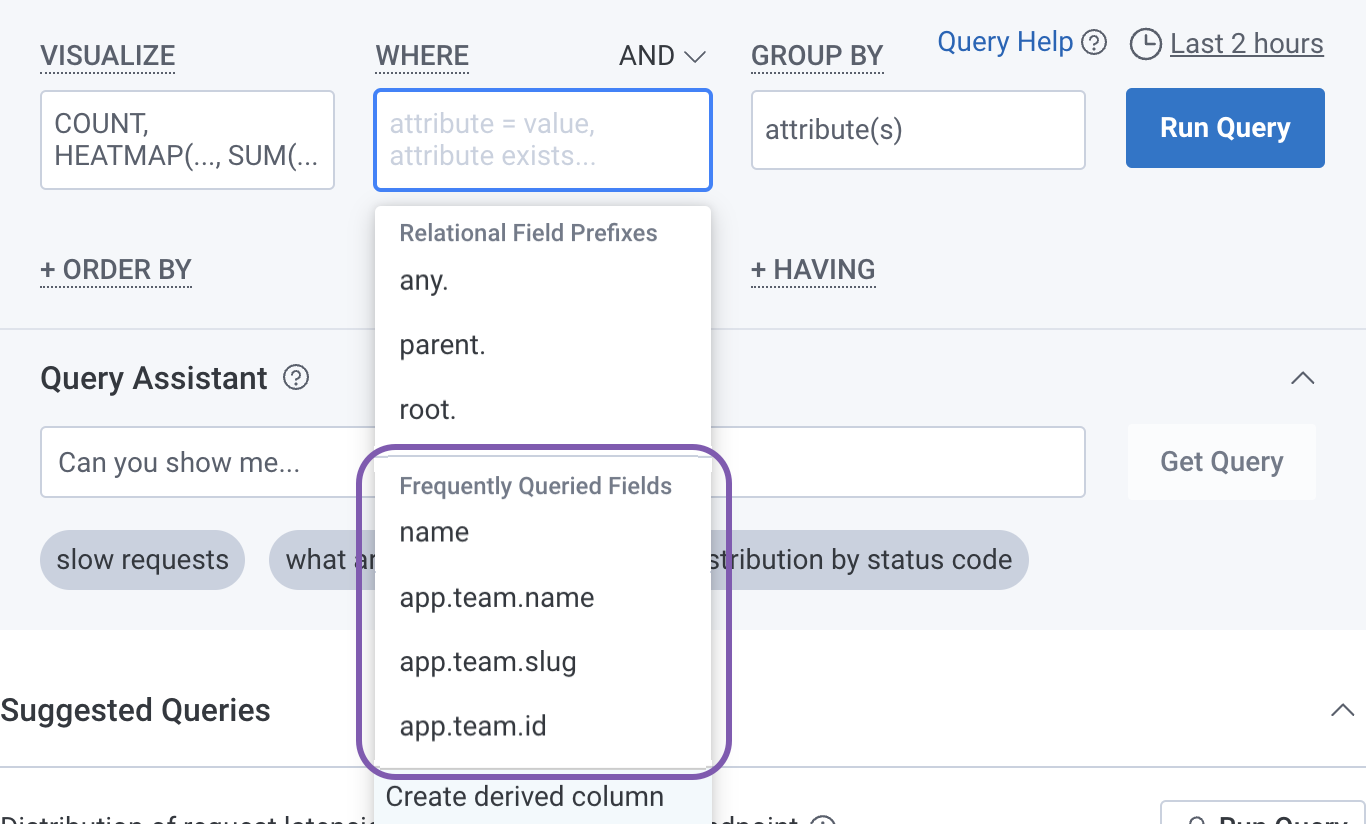 Listed values include data that has been most frequently queried and:
* used within the last three weeks
* used in manual queries
* specific to the currently selected dataset and environment
## Tasks
* Query your data
* Edit query
* Change Datasets
* Change applicable Time Range
* Compare time ranges
Listed values include data that has been most frequently queried and:
* used within the last three weeks
* used in manual queries
* specific to the currently selected dataset and environment
## Tasks
* Query your data
* Edit query
* Change Datasets
* Change applicable Time Range
* Compare time ranges